Deep Dive into Embeddings and Semantic Search
Language models allow computers to go beyond standard keyword search and find needed fragments by text meaning. This is called semantic search, and today we'll implement it in practice.
The application of semantic search goes beyond building web search. With it, you can create your own search system for internal company documents or help users better navigate your FAQ. Another example of practical semantic search implementation is recommending relevant articles in a blog after reading one of them.
Here's how it looks in diagram format:
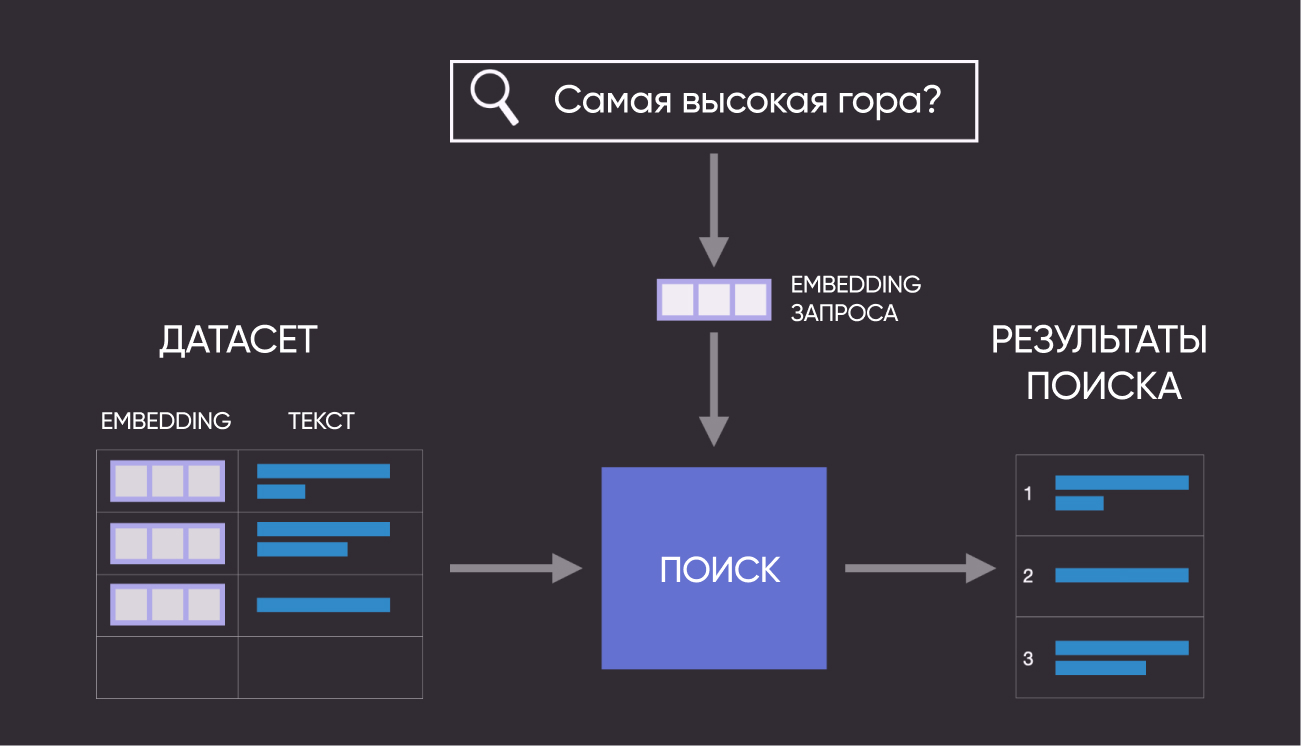
So, in this guide we'll go through the following steps:
- Get a CSV file with 1000 questions in Russian
- Convert text to numerical embeddings
- Use index search and nearest neighbors
- Visualize the question file based on embeddings
# Install Langchain for creating embeddings, Umap – for reducing their dimensionality to 2 dimensions;
# Altair – for visualization, Annoy – for approximate nearest neighbor search;

#!pip install langchain
#!pip install langchain-openai
#!pip install umap-learn
#!pip install altair
#!pip install annoy

# You may also not have some of the popular packages installed

#!pip install pandas
#!pip install numpy
#!pip install tqdm
#!pip install scikit-learn
#!pip install gdown
1. Setting Up the Environment
# Import libraries

from langchain_openai import OpenAIEmbeddings
import os
import gdown
import numpy as np
import re
import pandas as pd
from tqdm import tqdm
import altair as alt
from sklearn.metrics.pairwise import cosine_similarity
from annoy import AnnoyIndex
import umap.umap_ as umap
import warnings
warnings.filterwarnings('ignore')
pd.set_option('display.max_colwidth', None)
os.environ["COMPRESSA_API_KEY"] = "your_key"
2. Load the Question Dataset
We've specially prepared 1000 questions in Russian for working with them in this guide.
# Download the dataset from Compressa's Google Drive
file_id = '1wRC8bKBY5W8lrXU9cTKCgAdoL0g72ANI'
url = f'https://drive.google.com/uc?id={file_id}'
gdown.download(url, '1000_ru_questions.csv', quiet=False)

# Import into pandas dataframe
df = pd.read_csv(file_path)

# Check that everything loaded correctly
df.head(10)
2. Convert Question Dataset to Embeddings
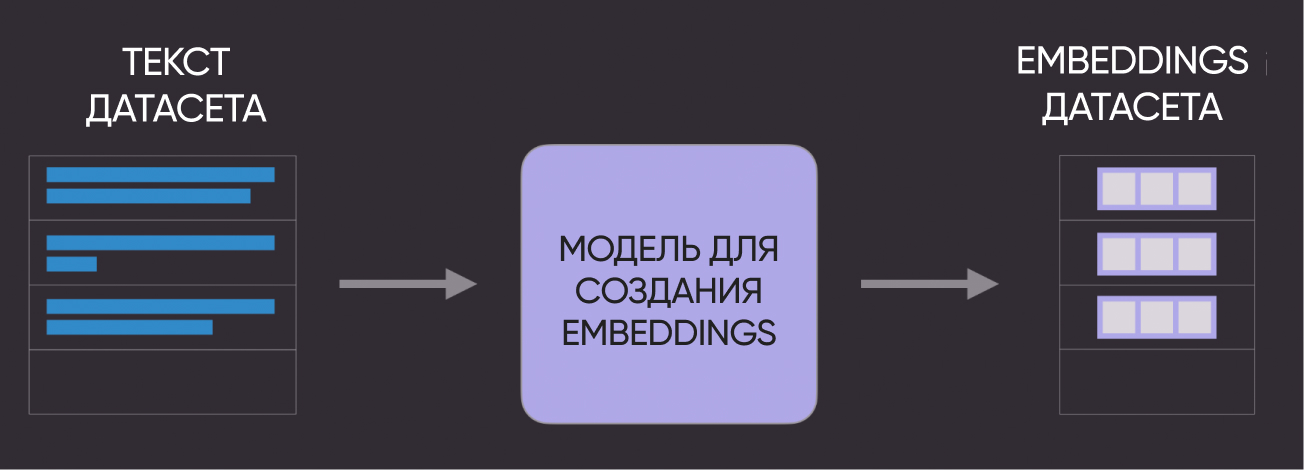
The next step is to convert our text questions into numerical embeddings.
Schematically it looks like this:
# Get our embeddings
embeddings = OpenAIEmbeddings(api_key=os.getenv("COMPRESSA_API_KEY"), base_url="https://compressa-api.mil-team.ru/v1", model="Compressa-Embeddings")
texts = list(df['question'])
embeds = embeddings.embed_documents(texts)
# Check the dimensionality of our embeddings (reminder: we have 1000 questions)
embeds = np.array(embeds)
print(embeds.shape)
3. Using Index Search and Nearest Neighbor
Another diagram for clarity :)
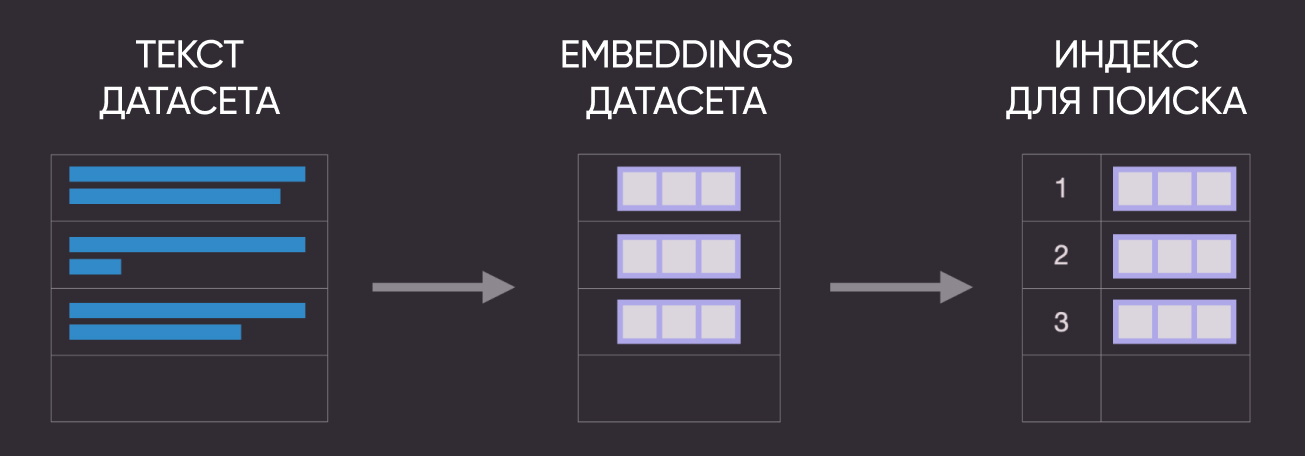 Let's now use Annoy to build an index that stores embeddings in a special format optimized for fast search. This approach scales well to large amounts of text. There are other solutions - Faiss, ScaNN, PyNNDescent).
After creating the index, you can use it to get nearest neighbors for one of the existing questions.
# Create search index, pass the size of our embeddings
search_index = AnnoyIndex(embeds.shape[1], 'angular')

# Add all vectors to the search index and test
for i in range(len(embeds)):
    search_index.add_item(i, embeds[i])

search_index.build(10) # 10 trees
search_index.save('test.ann')
3.1. Finding Similar Questions for One Example from the Dataset
If we're only interested in question proximity in the dataset (without external queries), then it's easiest to calculate the distance between all pairs of embeddings we got earlier.
# Select one of the questions to find others similar to it
example_id = 109

# Get nearest neighbors
similar_item_ids = search_index.get_nns_by_item(example_id,10,
                                                include_distances=True)
# Format and output the nearest questions and distance to them
results = pd.DataFrame(data={'questions': df.iloc[similar_item_ids[0]]['question'],
                             'distance': similar_item_ids[1]}).drop(example_id)

print(f"Question:'{df.iloc[example_id]['question']}'\nSimilar questions:")
results
3.2. Finding Questions Similar to User Query
We're not limited to searching neighbors for existing questions. If we receive a new query from a user, we can convert it to an embedding and find nearest neighbors in our dataset.
query = "What is the highest mountain in the world?"

# Convert query to embedding
query_embed = embeddings.embed_query(query)

# Get semantically similar questions using Annoy index
similar_item_ids, distances = search_index.get_nns_by_vector(query_embed, 10, include_distances=True)

# Format results
query_results = pd.DataFrame(data={'questions': df.iloc[similar_item_ids]['question'],
                                   'distance': distances})

print(f"User query: '{query}'\nSimilar questions:")
print(query_results)
4. Visualize the Question File
As a final exercise, let's display the questions from the dataset on a 2D graph and visually see the semantic connections.
# UMAP reduces embedding dimensionality from 4096 to 2 so we can display them on a graph
reducer = umap.UMAP(n_neighbors=20)
umap_embeds = reducer.fit_transform(embeds)

# Prepare data for building an interactive graph with Altair
df_explore = pd.DataFrame(data={'questions': df['question']})
df_explore['x'] = umap_embeds[:,0]
df_explore['y'] = umap_embeds[:,1]

# Build the graph
chart = alt.Chart(df_explore).mark_circle(size=60).encode(
    x=#'x',
    alt.X('x',
        scale=alt.Scale(zero=False)
    ),
    y=
    alt.Y('y',
        scale=alt.Scale(zero=False)
    ),
    tooltip=['questions']
).properties(
    width=700,
    height=400
)
chart.interactive()
Hover over the points to see the text. Do you see any patterns in the grouped points? Questions similar in meaning or questions on similar topics?
Congratulations! This concludes our introductory guide to semantic search using embeddings. As you create search products, additional questions will certainly arise (for example, processing long texts or settings to improve embeddings for a specific task).
Start creating your projects with our APIs! If you want to share results or ask the team a question - join our Telegram chat.